Editing Discount Types for Orders
Getting Started
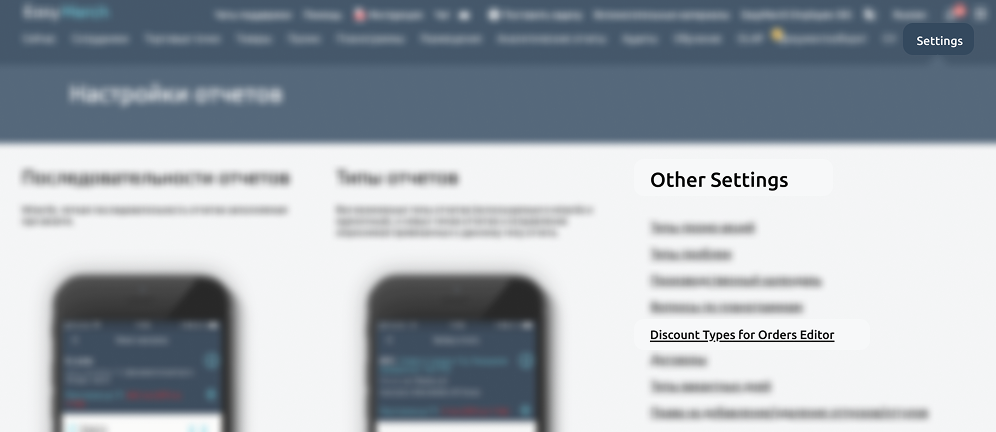
Open the "Settings" tab and in the "Other settings" section, select "Discount Types for Orders"
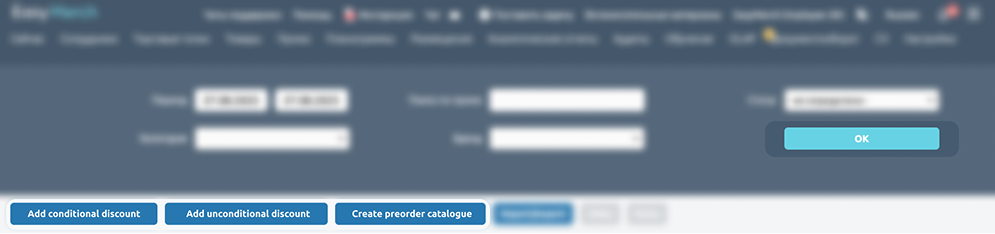
You will be taken to a section that displays a list of promo terms that can be applied to product orders
To view existing promo terms, set the filters and click "OK"
Below the filters, you can create promo terms
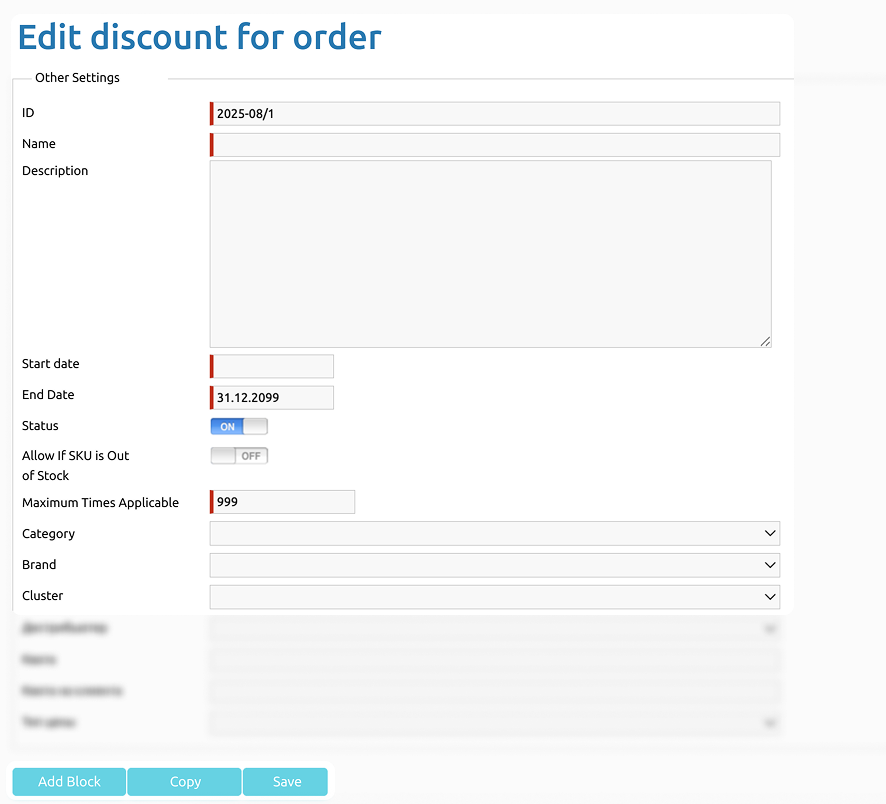
Editing Discount Types
You can edit the following parameters of the promo term:
1) Unique promo code, name, and description
If synchronization with an external system is required, use a specific promo code; in other cases, use any code
2) Promo validity period
3) Enable/disable the promo
4) Maximum number of promo uses
5) Product category and brand linked to the promo
A sales representative only has access to the categories they are assigned to
6) If a cluster is specified, the promo will only be available in shopswithin that cluster
Once editing is complete, click "Add Block" to proceed
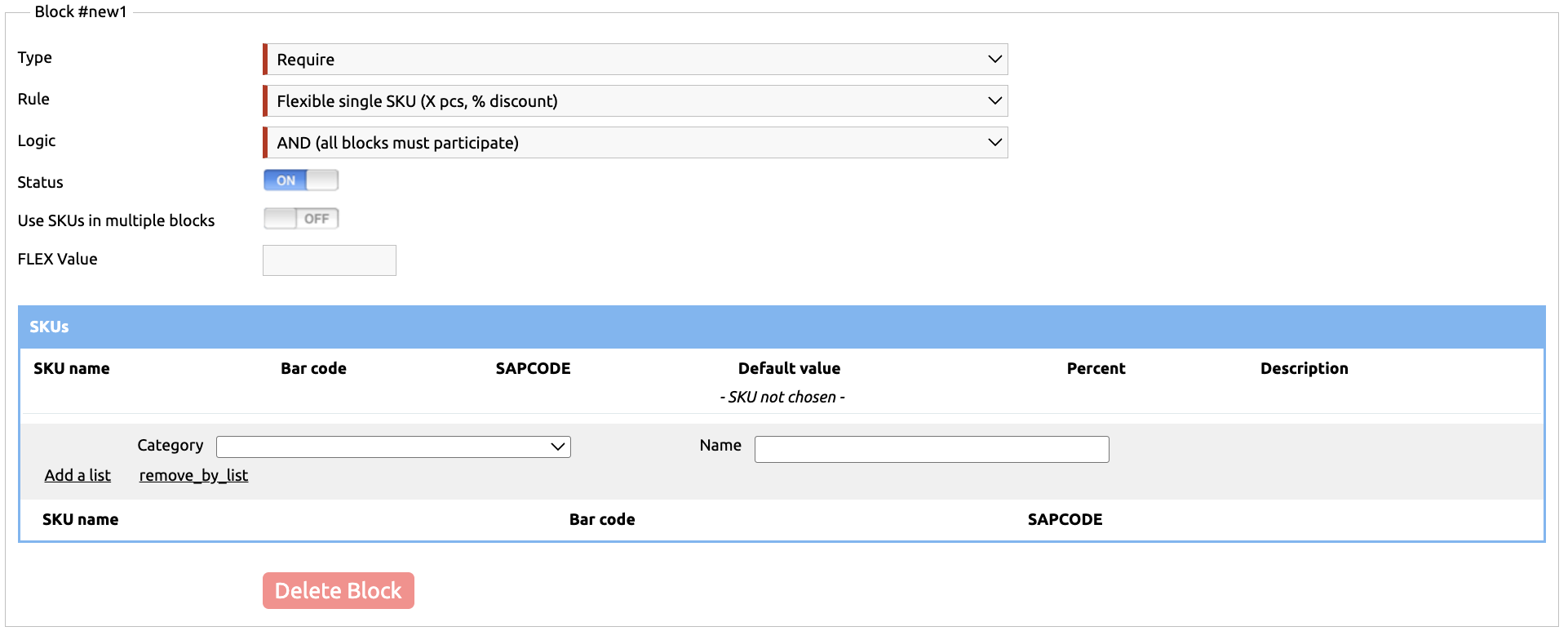
Block Types
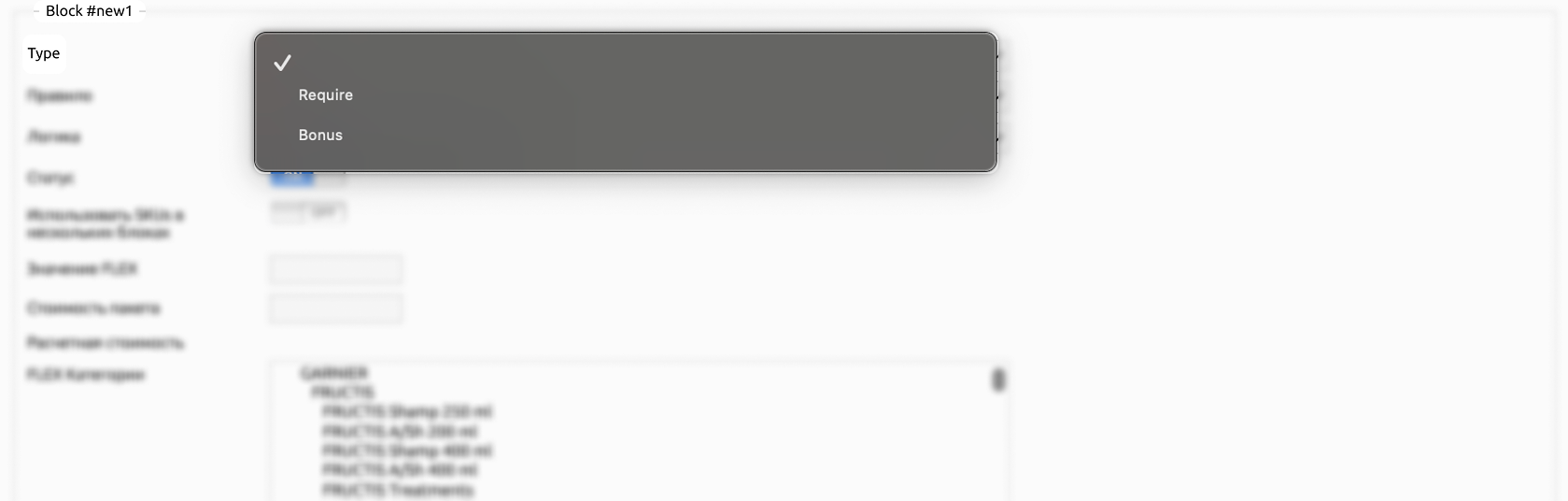
There are two types of blocks:
Require — this is a promo condition that must be met
Bonus — this is what the customer receives upon fulfilling the promo conditions
Block Rules
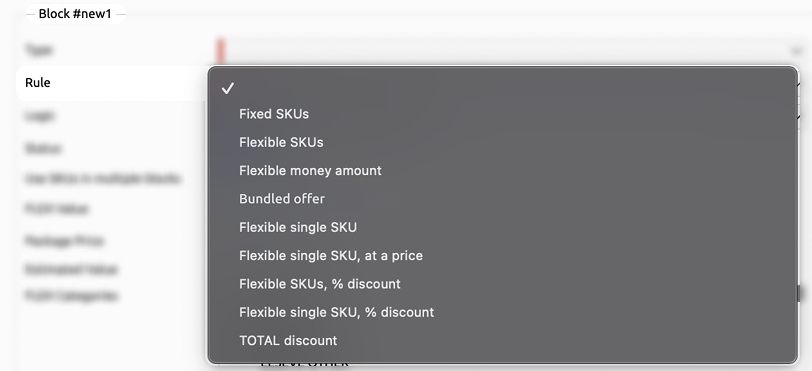
You can set up one of these rules for blocks:
Fixed SKUs
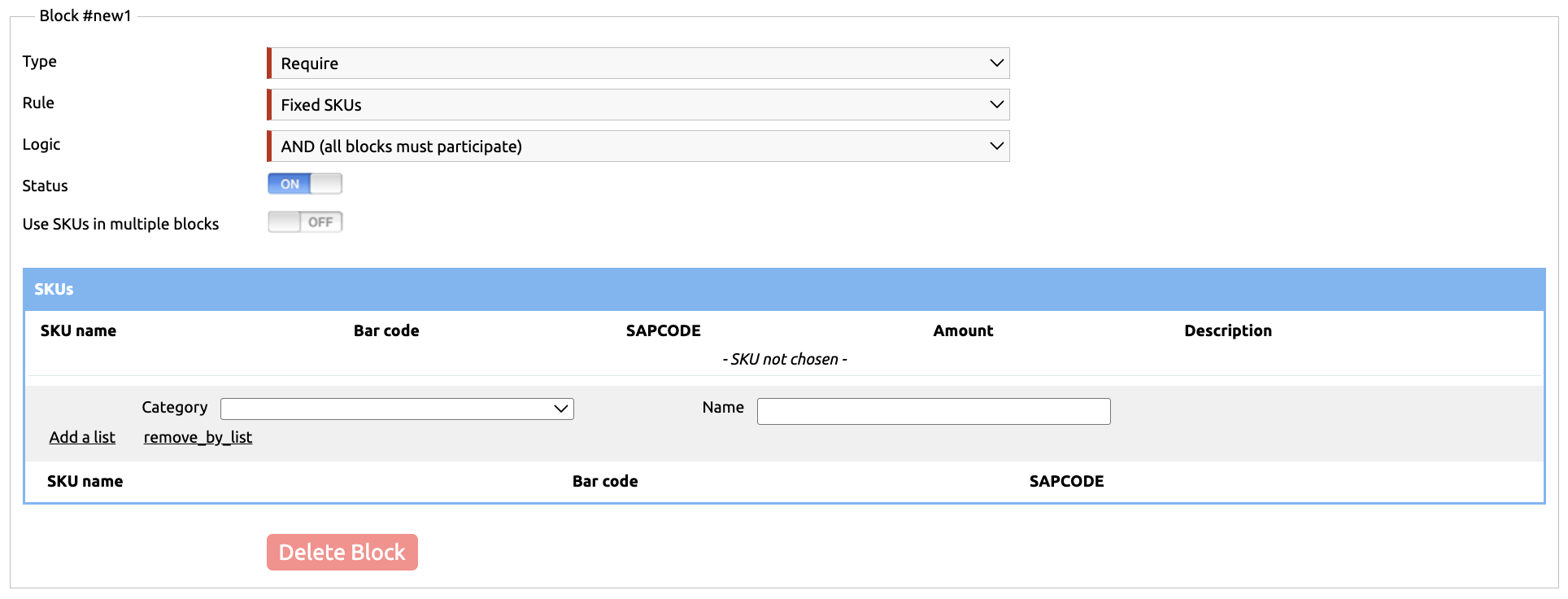
These are specific SKUs that must be purchased to receive a bonus (or the specific items that will be granted as a bonus)
Select "Fixed SKUs" in the Rule field, then in the SKUs table choose the exact products participating in the promotion. You can add them as a list by selecting a category, or individually using search by name
You can set a quantity for each item — this is how many units must be purchased to meet the requirement (or how many will be given as a bonus)
Available for REQUIRE / BONUS blocks
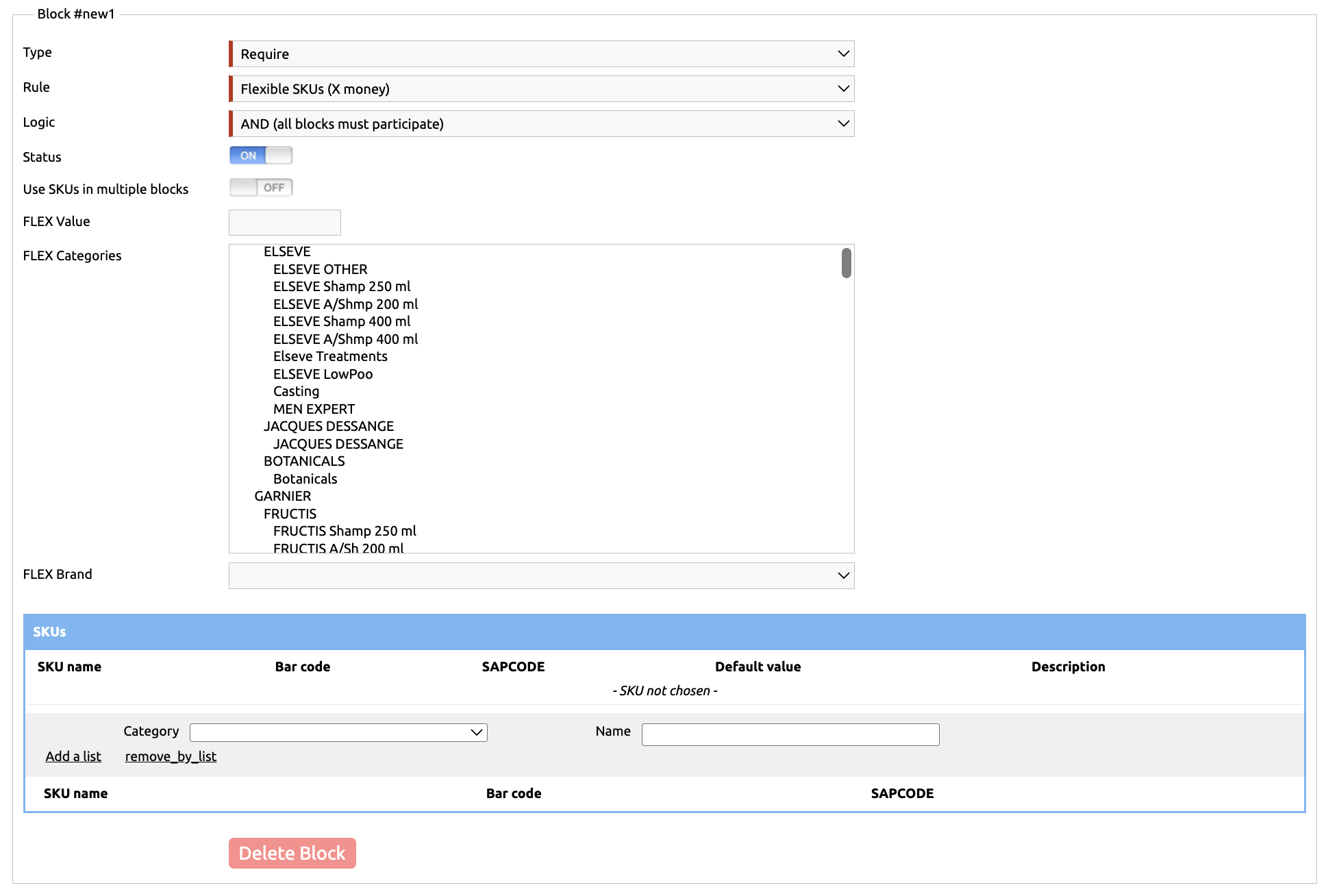
Flexible SKUs
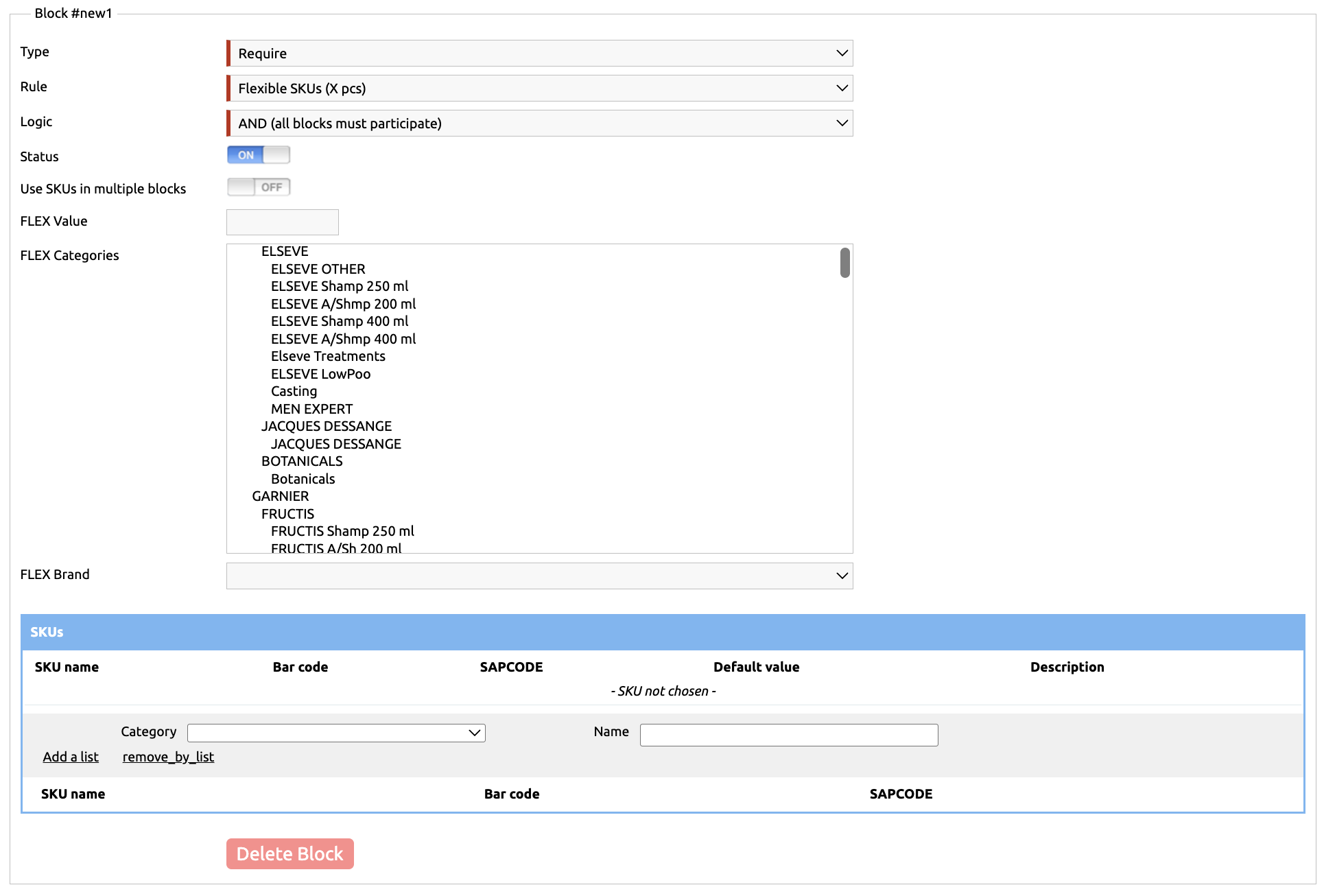
This is a list of SKUs from which the customer can choose any FLEX number of products they want
Select the "Flexible SKUs (X pcs)" rule in the Rule field, then specify the required number of items in the FLEX Value field — this is how many products the customer must select
After that, you can either choose specific products participating in the promotion in the SKUs table, or specify a FLEX category so you don’t have to select each item individually
Available for REQUIRE / BONUS blocks
Flexible money amount
In the FLEX Value field, you can specify the exact amount that needs to be accumulated in products for the promo condition to be met
This rule differs from Flexible SKUs in that the customer can add any number of items until the specified amount is reached
After that, you can either select specific products participating in the promotion in the SKUs table, or specify a FLEX category so you don’t have to select each item individually
Available only for the REQUIRE block
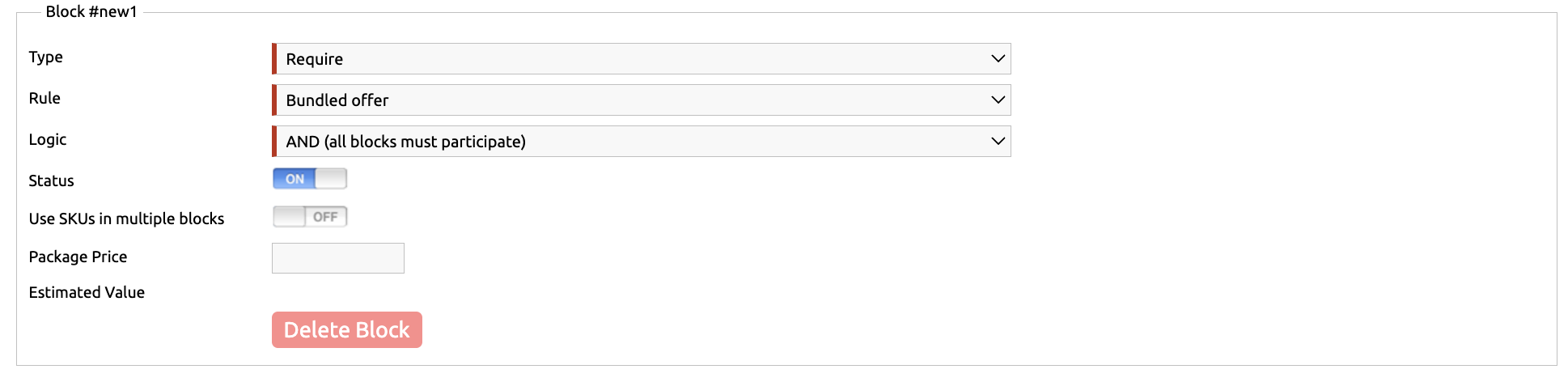
Bundled Offer
This is a specific amount that will be applied to all products listed in the BONUS block
Enter the amount in the Package Cost field — this is the exact price at which the order will be available
In the BONUS block, you can specify, for example, Fixed SKUs to create a predefined product bundle, or Flexible SKUs to let the customer assemble the bundle themselves
Available only for the REQUIRE block
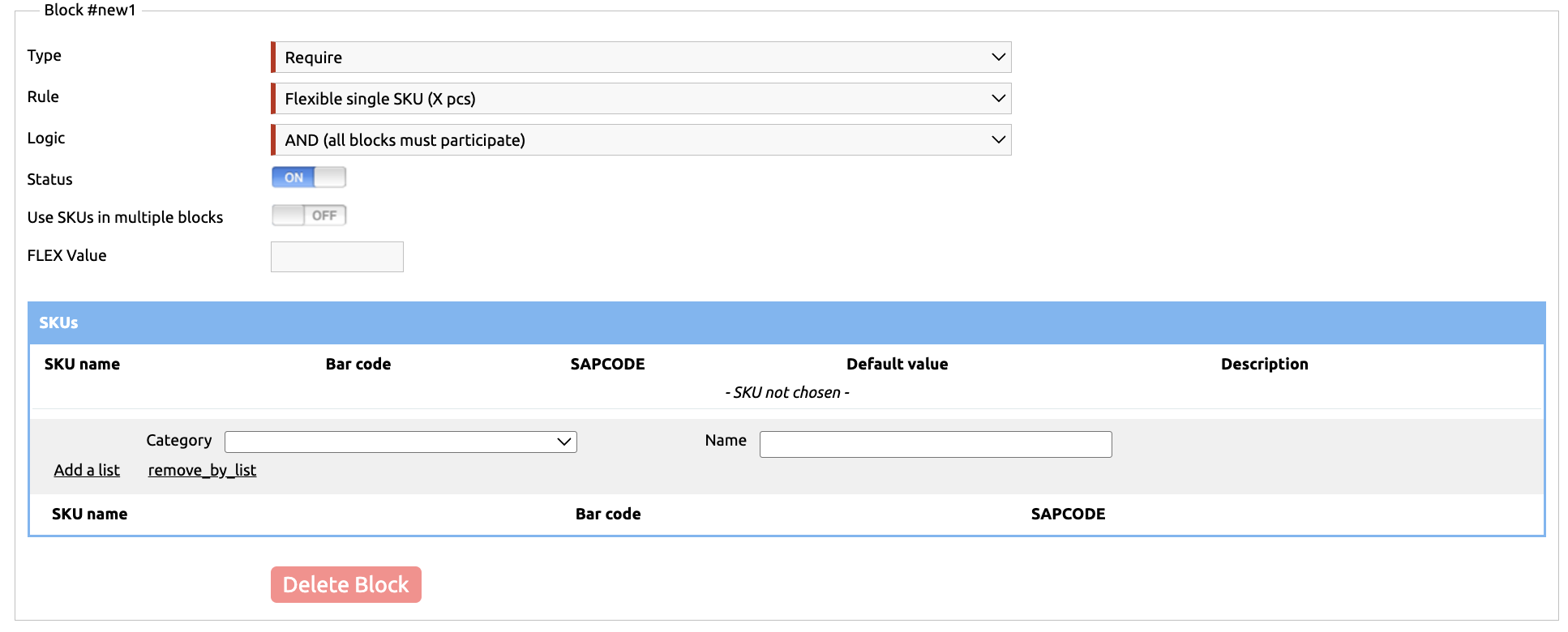
Flexible single SKU
Creates a condition in which a specific product must be purchased in a FLEX number of units
Enter a number in the FLEX Value field, and specify the list of products in the SKUs table. The customer can choose any single product from the list, and if they purchase it in the quantity specified in FLEX Value, the condition is considered fulfilled
Available only for the REQUIRE block
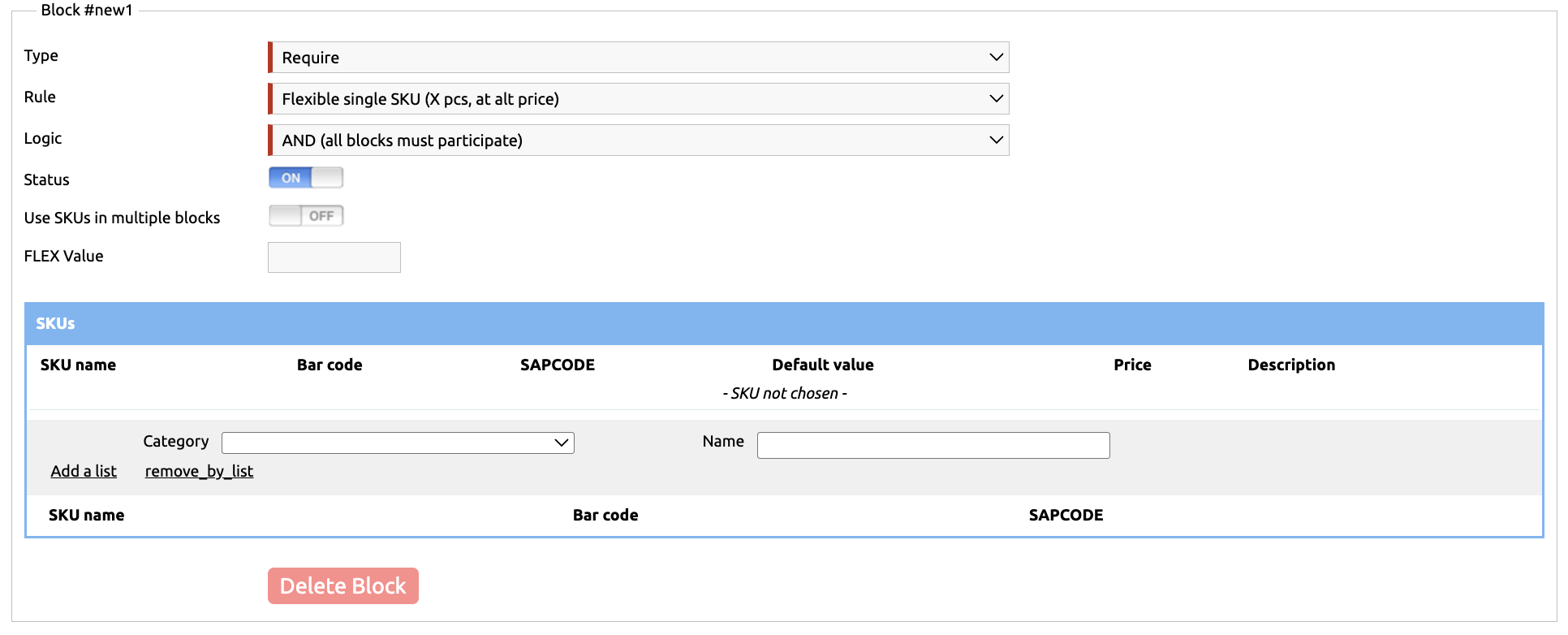
Flexible single SKU, at a price
This rule works the same way as “Flexible single SKU (X pcs, at all price)” — meaning the customer must choose one product from the list and purchase it in the specified quantity (the required quantity is set in the FLEX Value field) — but it differs in that it does not require a BONUS block
“Flexible single SKU, at a price” functions as both REQUIRE and BONUS at the same time. After selecting the products in the SKUs table, you must assign a promo price to each item in the Price field, and once the order conditions are met, the promo price will be applied automatically
Available only for the REQUIRE block
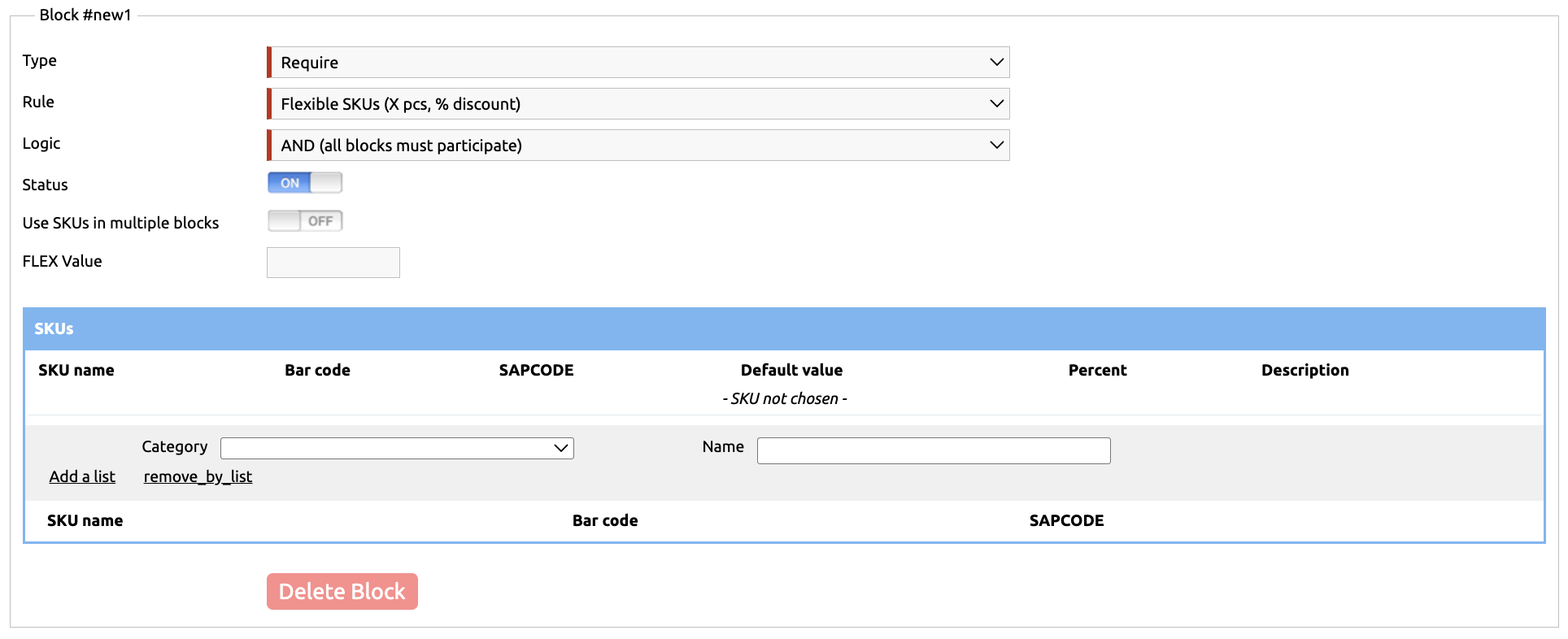
Flexible SKUs, % discount
This rule works the same way as “Flexible SKUs (X pcs)” — meaning the customer must choose any products from the list specified in the SKUs table, in the total quantity indicated in the FLEX Value field — but it differs in that it does not require a BONUS block
“Flexible SKUs, (X pcs, % discount)” functions as both REQUIRE and BONUS at the same time. After selecting the products in the SKUs table, you must assign a discount value (1–100) to each item in the Percent field, and once the order conditions are met, the promo price will be applied automatically
Available only for the REQUIRE block
Flexible single SKU, % discount
This rule works the same way as “Flexible single SKU (X pcs)” — meaning the customer must choose one product from the list and purchase it in the specified quantity (the required quantity is set in the FLEX Value field) — but it differs in that it does not require a BONUS block
“Flexible single SKU, (X pcs, % discount)” functions as both REQUIRE and BONUS at the same time. After selecting the products in the SKUs table, you must assign a discount value (1–100) to each item in the Percent field, and once the order conditions are met, the promo price will be applied automatically
Available only for the REQUIRE block